Documentation Index
Fetch the complete documentation index at: https://lightdash-mintlify-6e7b8d35.mintlify.app/llms.txt
Use this file to discover all available pages before exploring further.
Core capabilities
AI agents in Lightdash allow you to:- Ask questions in natural language - Simply type what you want to know about your data, like “What’s our total revenue by region?” or “Show me user growth over the last 6 months”
- Get instant visualizations - Receive bar charts, time series, and tables automatically generated based on your questions
- Explore interactively - Follow up with additional questions, drill down into specific data points, or request different chart types
- Maintain conversation context - AI agents remember your conversation history, so you can build on previous questions and refine your analysis
- Provide text-only responses - Get answers in natural language when visualizations aren’t needed
- Guide you to the right data - Direct you to the most relevant explores or tables for your questions
- Discover existing content - Find and share relevant charts and dashboards that have already been created in your project
- Generate complete dashboards - Create multiple related visualizations at once that tell a cohesive story about your data, perfect for executive summaries or thematic analyses
Suggestion chips
Suggestion chips are rolling out behind the
ai-agent-suggestions feature flag. If you don’t see them yet, ask your organization admin to enable the flag for your workspace.When chips appear
- Empty-state chips show on a new, empty thread to help you kick off an analysis.
- Continue chips show after the agent replies and propose the most likely next step — a drill-down, a comparison, or a follow-up question grounded in the explore the agent just used.
- Chips fade out while you’re scrolling back through long replies and reappear when you return to the input.
Chip types
- Prompt chips send the chip’s label to the agent as your next message. They map to one of the agent’s tools (run a query, build a dashboard, find existing content, propose a semantic-layer change, or run SQL) and bias the agent toward that tool on the next turn.
- Navigate chips appear only on the empty state and only when you have recent threads worth resuming. Clicking one opens that thread in a new tab. Navigate chips are marked with an arrow icon and always point to a conversation you authored.
Using a chip
Click a chip to either submit it as your next message (prompt chip) or jump to a recent thread (navigate chip). Prompt chips can be edited before sending — click the chip to drop the label into the input, then adjust the wording before pressing Send.Configuring chips
Suggestion chips have no per-agent setting today. They’re generated automatically from:- The explores, dimensions, and metrics your agent has access to (controlled by tags and data access).
- Your project’s verified questions and verified content.
- Your own recent threads in the same project.
Asking about a chart or dashboard
You can launch an AI conversation with a chart or dashboard pre-loaded as context. From the resource’s⋯ menu, click Ask AI Agent.
This opens a new tab on the new-thread page for your default agent. The chart or dashboard appears as a pinned context card above the input, and the agent treats it as the subject of the conversation.
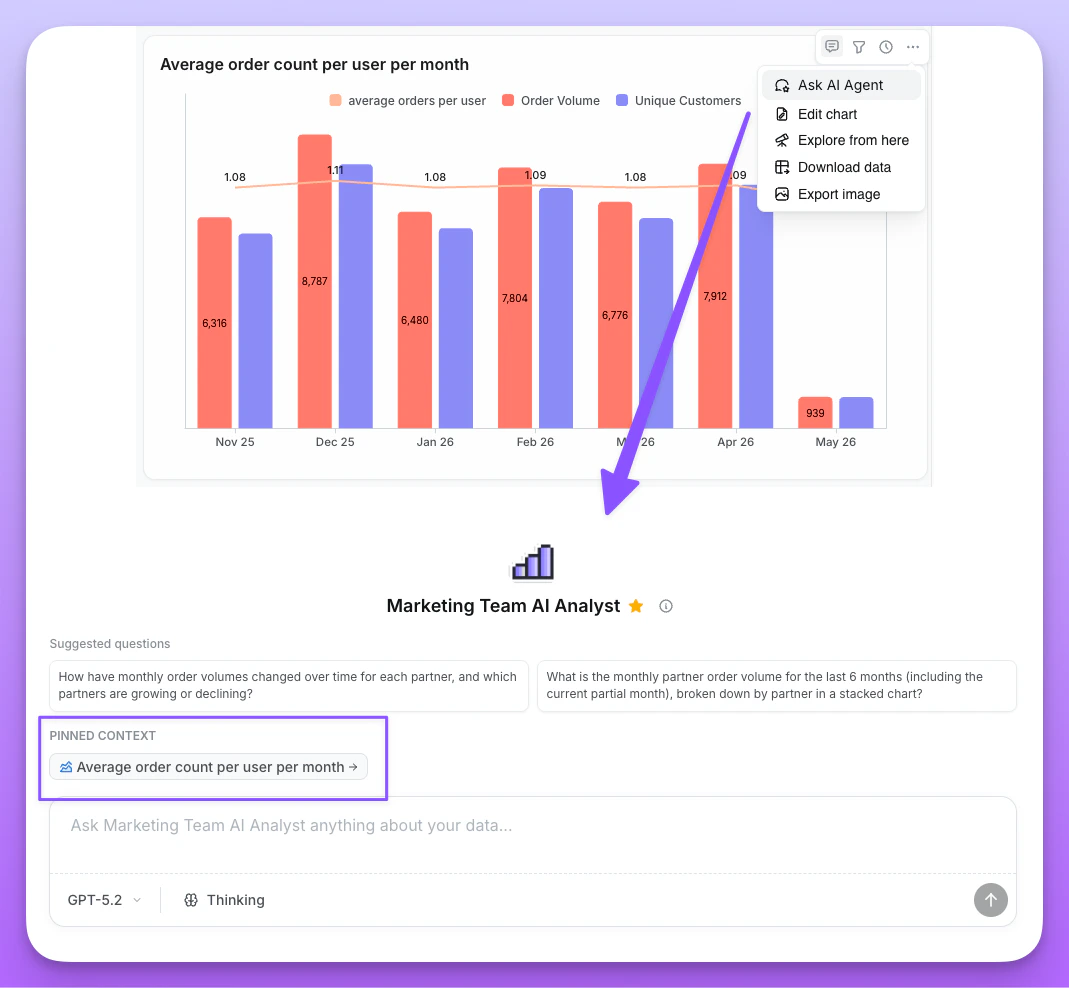
Pinned context
- The pinned card stays visible above your message in the thread, so anyone reading later can tell what was being discussed.
- Click the pinned card to open the chart or dashboard in a new tab.
- The pinned context persists across follow-up messages — “now break it down by region” still refers to the originally pinned chart.
What you can ask
When you pin a saved chart, the agent can read its actual data (subject to your data access setting). It honors the chart’s saved filters, sorts, and custom metrics, so you can ask:- “Why is this trending up?”
- “Are there outliers in this chart?”
- “Compare this chart’s last 30 days to the previous period.”
Example use cases
Advanced visualizations with window functions
AI agents can handle complex analytical queries that would traditionally require writing intricate SQL or YAML configurations. In this example, we demonstrate building a 3-month rolling average visualization using nothing but natural language.
This demo shows:
- Creating complex window function calculations with plain English
- Building a 3-month rolling average without writing SQL or YAML
- AI agent understanding your semantic layer context automatically
- Generating production-ready charts from a single natural language query
- No need to manually configure partitions, ordering, or frame clauses
- From question to visualization in seconds, not hours
FAQs
- Does Lightdash store the query data?
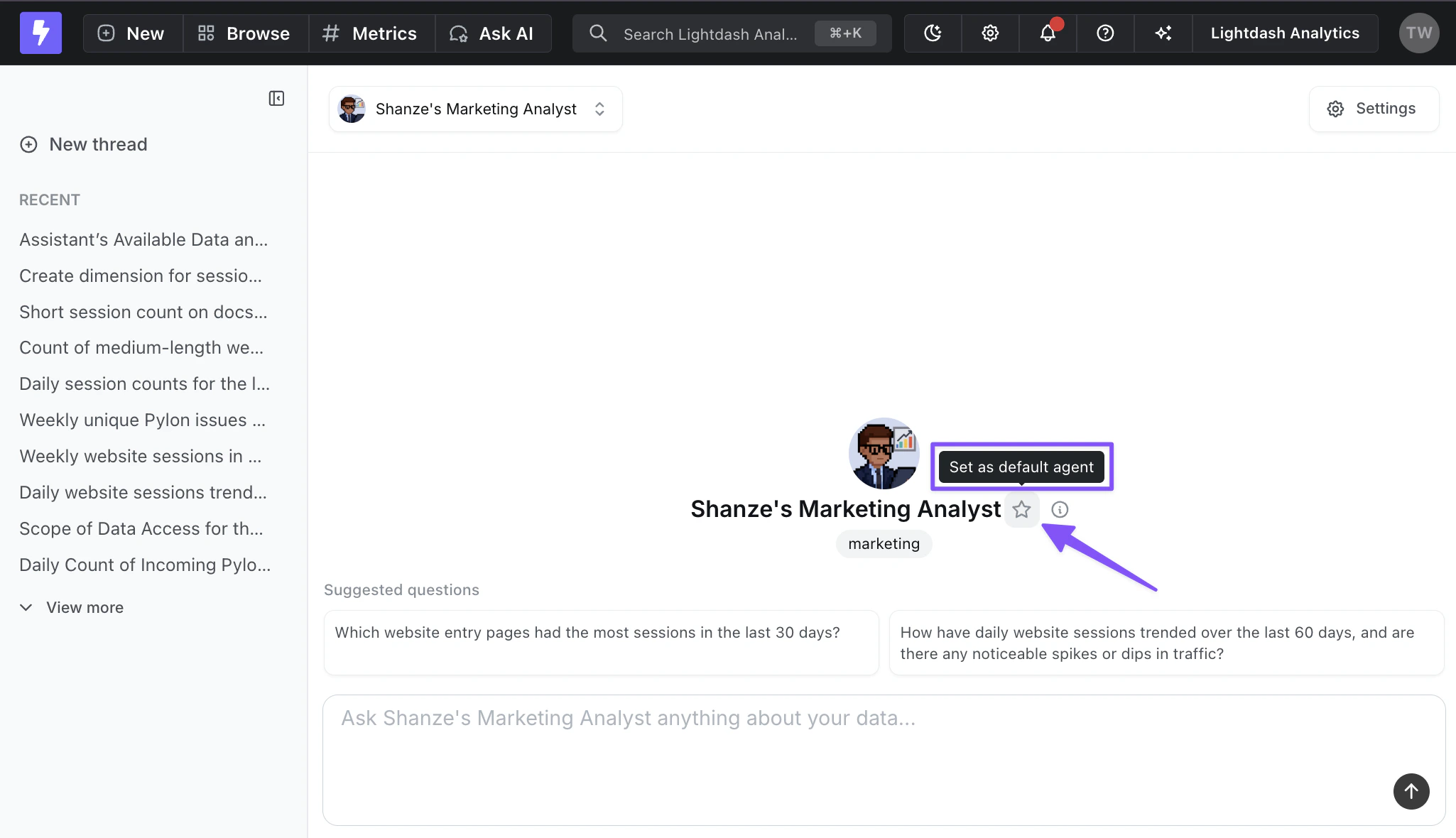
- Can I assign a default agent?